Knowing your computer’s hardware specifications is crucial, whether you’re troubleshooting an issue, upgrading your system, or just satisfying your curiosity. But if you’re like many users, you may not know exactly where to find this information. Don’t worry—getting to know your computer’s specs is easier than you think! In this guide, we’ll walk you through several simple methods to help you find out what’s inside your computer. By the end of this, you’ll have all the info you need to understand your hardware better.
Why Knowing Your Computer’s Specs is Important
Before we dive in, let’s quickly talk about why you should know your hardware specs. Understanding the components in your computer helps you in a few key ways:
- Upgrades: Want a faster computer? Knowing your processor, RAM, and storage type will help you decide what to upgrade.
- Troubleshooting: If something’s wrong with your computer, knowing which hardware is installed makes it easier to figure out what’s causing the issue.
- Software Compatibility: Some programs or games require certain hardware (like a specific processor or graphics card) to run properly.
Now, let’s get into how to find these details!
Method 1: Check Your System Properties for Basic Hardware Specifications
The easiest way to get a quick look at your computer’s hardware is by using the System Properties window.
Here’s how to do it:
- Open System Properties:
- Right-click the Start button (the little Windows logo in the bottom-left of your screen) and select System.
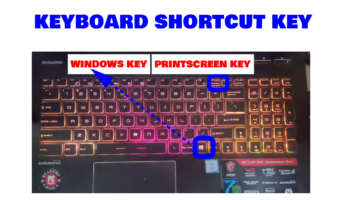
- Alternatively, press the Windows key + X on your keyboard and select System from the menu.
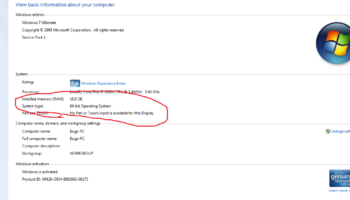
Once the System Properties window opens, you’ll see basic information about your computer, such as:
- Operating System: Tells you whether you’re using Windows 10, 11, etc.
- Processor (CPU): Shows what type of processor your computer has, like Intel i5 or AMD Ryzen.
- RAM (Memory): Tells you how much memory your computer has, such as 8GB or 16GB.
These specs are essential for knowing whether your PC can handle new software or how well it might perform with upgrades.
Method 2: Use Device Manager for Detailed Hardware Specifications
Want to dig deeper into your computer’s hardware? The Device Manager is a tool that shows all the hardware components installed on your system.
How to Access Device Manager:
- Right-click on the Start button again and select Device Manager from the list.
- In Device Manager, you’ll see a full list of hardware categories, such as:
- Display Adapters (this is your graphics card)
- Sound, Video, and Game Controllers (sound card)
- Network Adapters (Wi-Fi or Ethernet card)
If you’re troubleshooting an issue or planning an upgrade, this is where you can find specific details about your hardware.
Check Hardware Properties:
- Right-click on any hardware component (like your graphics card), then select Properties.
- This will open a new window showing detailed information such as the manufacturer, driver version, and more.
This is especially useful if you need to update drivers or identify the exact model of a component.
Method 3: Get Comprehensive Hardware Specs with the System Information Tool
If you want a full overview of your hardware—including some of the less obvious components like your motherboard—you can use the System Information tool.
How to Use System Information:
- Press the Windows key + R to open the Run dialog box.
- Type
msinfo32and press Enter.
The System Information window will pop up, showing a complete breakdown of your system’s hardware and software. This includes:
- Processor details
- BIOS version (this is the software that helps run your hardware)
- Motherboard model
- Memory (RAM) and its available slots
- Storage devices (like your SSD or HDD)
This is an excellent tool if you’re looking for specific info like how much storage space you have or what kind of motherboard your computer uses.
Why These Methods Matter for Finding Your Computer’s Hardware Specifications
Knowing your computer’s specs can save you time, money, and frustration. Whether you’re buying new hardware, upgrading, or simply ensuring compatibility with software, having this information at your fingertips is invaluable.
For example, if you’re thinking of upgrading your RAM, you’ll need to know how much memory your computer currently has and if there are available slots. If your computer is running slow, knowing your processor and hard drive type can help you diagnose the issue and decide if an upgrade is worth it.
Now You’re in the Know About Your Computer’s Hardware Specs
Finding your computer’s hardware specifications is easier than it sounds, even if you don’t have a tech background. Using the System Properties, Device Manager, and System Information tools, you can quickly gather all the info you need. Whether you’re upgrading your computer, troubleshooting issues, or simply curious, knowing your hardware is the first step toward getting the most out of your machine.
Go ahead and give these methods a try! It’s an exciting way to understand your computer better and make informed decisions about its performance and upgrades.
If you have any questions or need further help, feel free to drop a comment below—we’re here to help!
FAQs: How to Find Your Computer’s Hardware Specifications
1. Why is it important to know your computer’s hardware specifications?
Knowing your hardware specs helps you troubleshoot issues, plan upgrades, and ensure software compatibility. It can save you time and money when purchasing new components or software.
2. Can I check my computer’s hardware specifications without third-party software?
Yes! You can easily check your computer’s hardware specs using built-in Windows tools like System Properties, Device Manager, and System Information.
3. How do I find my computer’s RAM size?
You can find your RAM size by opening the System Properties window or using the System Information tool. It will be listed as “Installed RAM” under your system information.
4. What tool gives the most detailed view of my computer’s hardware?
The System Information tool provides the most comprehensive view of your hardware, including details about your motherboard, processor, memory, and storage.
5. How do I check my graphics card (GPU)?
To check your graphics card, open Device Manager, expand the Display Adapters section, and you’ll see the name of your installed GPU. Right-click and select Properties for more details.
6. Is it safe to make changes in Device Manager?
Yes, but be cautious. Device Manager allows you to view and manage your hardware, but making changes without proper knowledge could affect how your computer functions. Always double-check before updating drivers or uninstalling devices.
This FAQ section addresses common questions and further simplifies the process of finding your computer’s hardware specs. It also improves the SEO potential of the blog post by incorporating relevant key phrases.


Comments are closed.