If you notice that only 50 percent of your installed RAM is usable, you may be dealing with a faulty memory module or another configuration issue. This situation can be particularly challenging, especially if you’ve recently upgraded your computer’s RAM or are trying to maximize your system’s performance. In such cases, your system may detect all the installed memory sticks, but only half of the total RAM appears to be usable.

This issue can significantly impact your computer’s efficiency and overall performance. In this guide, we’ll explore the possible reasons behind this problem and provide a step-by-step approach to help you troubleshoot and resolve it, ensuring that all your installed memory is fully utilized.
Understanding the RAM Problem
First, let’s break down the issue. You’ve installed multiple RAM sticks, and your system is recognizing all of them—great! But when you check your system properties, you see that only half of the installed memory is listed as usable. For example, your system might have 16GB installed, but only 7.92GB is usable. So, where’s the rest of your memory going?
This issue often relates to hardware limitations, BIOS settings, or even a faulty RAM stick. It’s important to pinpoint the exact cause so you can address it effectively.
Initial System Check: Verify Your RAM Configurations
Start by confirming the issue through your system’s properties. On Windows, you can do this by right-clicking on “This PC” and selecting “Properties.” Here, you’ll see the total installed RAM and the amount of usable RAM. If there’s a significant difference, you know something’s wrong.
Next, open the Task Manager by pressing Ctrl + Shift + Esc, then navigate to the “Performance” tab. Under the “Memory” section, check for any “Hardware Reserved” memory. If you see a large amount of memory reserved for hardware, this could be why only a portion of your RAM is usable.
Tuning Your BIOS: Unleashing Full Memory Potential
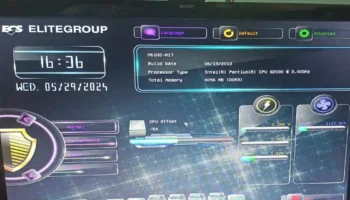
Sometimes, the BIOS settings can be the culprit. Restart your computer and enter the BIOS/UEFI settings (usually by pressing F2, Del, or another key during startup). Once inside, look for settings related to memory, such as “Memory Remapping” or “Memory Hole Remapping.” Ensure these are enabled, as they allow your system to use all available memory.
Isolating the Problem: Testing Each RAM Stick
If BIOS settings aren’t the issue, the next step is to test each memory stick individually. Power down your system, unplug it, and open the case. Remove all but one memory stick, then power the system back on. Check if the full capacity of that stick is usable. Repeat this process for each memory stick.
If you discover that one stick is causing the issue, it may be defective or incompatible with your motherboard. In this case, replacing the faulty RAM stick should solve the problem.
Motherboard Compatibility: Understanding Hardware Limits
Your motherboard may also have limitations that affect how much RAM it can utilize. Some older motherboards may not support higher capacities or may require specific configurations for dual-channel memory setups. Check your motherboard’s manual or the manufacturer’s website for details on memory support.
Update Your OS and Drivers
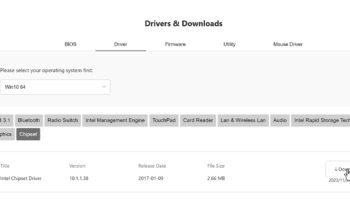
Ensure that your operating system is fully updated, as sometimes updates can resolve memory management issues. Additionally, make sure all your drivers, particularly chipset and memory drivers, are up to date.
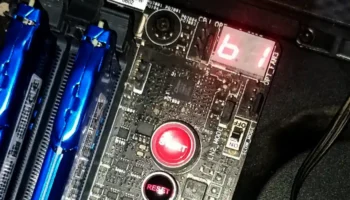
A video of my computer encountering the issue
Dealing with a system that only uses half of its installed memory can be a hassle, but with the right approach, you can troubleshoot and fix the problem. By checking your system properties, adjusting BIOS settings, testing each RAM stick, and considering your motherboard’s limitations, you can ensure that your system is running at its full potential.
If all else fails, seeking professional help might be the next best step to diagnose more complex hardware issues.