Networking two computers for file sharing or gaming is simpler than you might think! Whether you’re looking to transfer files or enjoy some multiplayer gaming without additional networking devices like routers or switches, here’s a step-by-step guide to get you started.
Step 1: Check for LAN Ports
First, ensure both computers have onboard LAN ports or Network Interface Cards (NIC). These are standard on most modern computers, but double-check if you’re unsure. If they’re not present, you’ll need to purchase and install a LAN card.
Step 2: Create a Crossover Cable To Network Two Computers
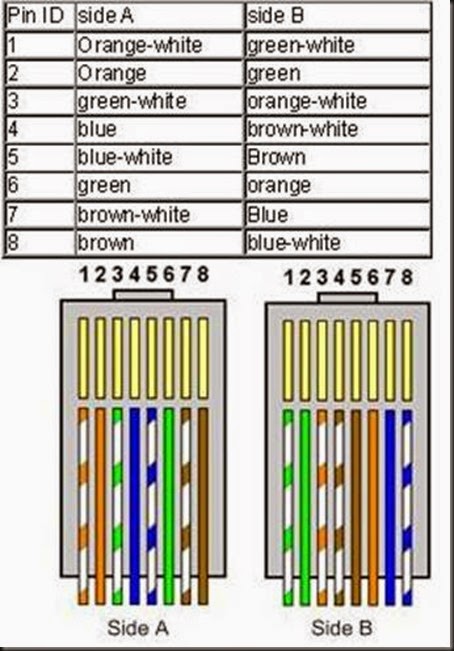
To connect two computers directly without a switch or router, you’ll need a crossover Ethernet cable. This special cable allows the two computers to communicate directly. Here’s what you’ll need to make one:
- Cable Types: Cat5, Cat5e, or Cat6 UTP Cable
- RJ45 Connectors
- Crimping Tool
Creating the Cable:
- Cut the Ethernet cable to your desired length.
- Strip the cable ends to expose the individual wires.
- Arrange the wires following the crossover wiring diagram:
- One end: Follow the T568A standard (Green stripe, Green, Orange stripe, Blue, Blue stripe, Orange, Brown stripe, Brown).
- Other end: Follow the T568B standard (Orange stripe, Orange, Green stripe, Blue, Blue stripe, Green, Brown stripe, Brown).
- Insert the wires into the RJ45 connectors and crimp them securely using the crimping tool.
- Test the cable to ensure it works.
If making a crossover cable feels too complex, you can buy one pre-made at your local electronics or computer store. These cables are inexpensive and readily available.
Step 3: Connect and Configure
Once your crossover cable is ready, follow these steps:
- Connect the Computers:
- Plug one end of the cable into the LAN port of each computer.
- Configure IP Addresses:
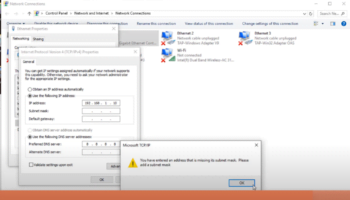
- On each computer, open the Network and Sharing Center (Windows) or Network Preferences (Mac).
- Assign manual IP addresses to each computer:
- Computer 1: IP Address:
192.168.1.1, Subnet Mask:255.255.255.0. - Computer 2: IP Address:
192.168.1.2, Subnet Mask:255.255.255.0.
- Computer 1: IP Address:
- Enable File Sharing (optional):
- Set up folder sharing by right-clicking on the folder you want to share, selecting “Properties,” then navigating to the Sharing tab.
- Adjust permissions if necessary.
Step 4: Play Network Games
Gaming on a local network (LAN) is straightforward once the connection is set up:
- Launch the game on both computers.
- Look for the Multiplayer or LAN option in the game menu.
- Host a game session on one computer, and join the session from the other.
- If a Windows Firewall popup appears, select Allow Access to enable the connection. Alternatively, disable the firewall temporarily via the Control Panel.
Tips for a Smooth Experience
To connect two computer and able to play games and transfer files, you will be needed additional devices such as router or switches. But if you don’t want to buy additional such devices and all you need just two connect the two computer. All you need to do is check both computer if it has onboard LAN Ports or Network Interface Card (LAN Card) .