Encountering a black screen or the Boot Configuration Data (BCD) error with code 0xc0000034 can prevent your Windows 8 PC from starting. Fortunately, this issue can often be resolved using a Windows 8 Bootable DVD or USB Installer. Here’s a step-by-step guide to help you fix this problem.
Prerequisites in Repairing Windows 8 Black Screen or Boot BCD Error
Before starting, ensure you have:
- A Windows 8 Bootable USB Installer or Bootable DVD.
- Access to your PC’s BIOS/UEFI settings to change the boot sequence.
Step 1: Change Boot Sequence
Restart your computer and access the BIOS/UEFI setup (usually by pressing F2, F12, DEL, or ESC during startup, depending on your computer manufacturer).
- Change the boot order so that your PC boots from the USB drive or DVD first, instead of the system hard drive.
- Save the changes and exit the BIOS.
Step 2: Start the Repair Process
- Insert the bootable USB thumb drive into a USB port or the bootable DVD into your DVD drive.
- Restart your PC, and it should boot from the selected media.
- At the Windows 8 installation screen:
- Select your language, time and currency format, and keyboard settings.
- Click Next.
- Click Repair your computer (do not proceed with installation).
- Select Troubleshoot from the options presented.
- Click Advanced Options.
- Choose Automatic Repair.
Step 4: Run Automatic Repair
- The repair process will begin. You will see messages like Diagnosing your PC and Attempting repairs.
- Once the process completes, your PC will restart automatically.
- If the repair is successful, your Windows 8 should boot normally. This process typically takes 15–30 minutes.
Step 5: Use Command Prompt (If Automatic Repair Fails)
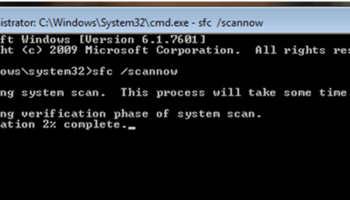
If the issue persists, repeat the steps above but select Command Prompt from the Advanced Options menu. Use the following commands to manually repair the BCD:
- Type each command below and press
- bootrec /fixboot then enter
- bootrec /fixmbr then enter
- bootrec /rebuildbcd
- After running these commands, type
exitto close the Command Prompt. - Restart your computer.
Additional Tips For Boot BCD Error 0xc0000034
- If /rebuildbcd doesn’t detect your Windows installation, you may need to rebuild the BCD manually. Advanced troubleshooting or third-party tools may be required for this step.
- Ensure your bootable media is properly created and compatible with your version of Windows 8.