Are you encountering the “No JVM could be found on your system” error message when trying to open an application on your computer? It can be a frustrating and confusing problem, especially when you’re not sure what caused it. However, there are some solutions you can try to fix this error.
Common Causes of the “No JVM Could Be Found” Error in Windows
The “No JVM could be found on your system” error is typically caused by a missing Java installation. This error occurs when your system is unable to locate the Java Virtual Machine (JVM) required to run specific applications.

Step 1: Reinstall Java Add-ons to Repair the No JVM Error
First, you can try reinstalling the Java add-ons for Windows by downloading the program from a java website. After completing the installation process, try opening the Java application that was causing the error.

If the error message no longer appears, then the issue has been resolved successfully. However, if the error persists, you may need to seek additional technical support.
Step 2: Install the Java Standard Edition Development Kit (SDK)
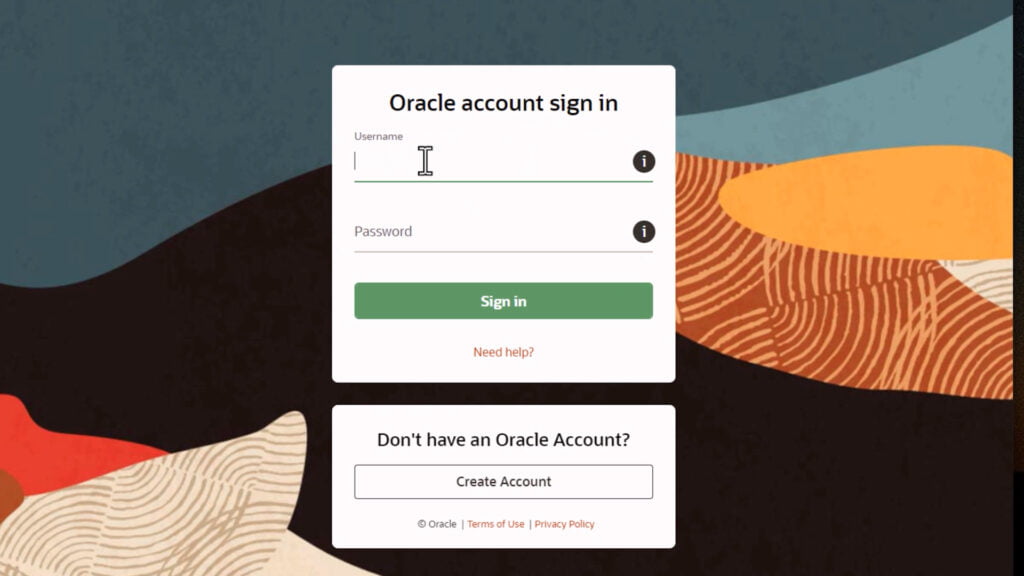
However, if that doesn’t work, you may need to download the Java Standard Edition development kit program. Keep in mind that downloading the Java SE development kit requires an Oracle account, which you can sign up for before downloading the file.
Once you’ve downloaded the necessary program, you can install it and agree to the terms and agreements. The download link for the Java add-ons and Java SE development kit program are available in the video description.
By following these steps, you can fix the “No JVM could be found on your system” error and successfully open Java applications on your computer.
Keep Java Updated to Avoid Future No JVM Errors
It’s essential to keep your Java software up-to-date to avoid encountering this error message in the future. Check for any available updates for your Java software and install them promptly to ensure that your system runs smoothly.
Encountering the “No JVM could be found on your system” error can be frustrating, but by following the steps outlined above—reinstalling Java add-ons or installing the SDK—you can resolve the issue. Ensure your Java software stays updated to avoid future errors and keep your system running smoothly.
Here’s the download link of the file:
Standard Java addons
Java Standard Edition Development Kit

FAQ: About the “No JVM Could Be Found on Your System” Error
What does “No JVM Could Be Found on Your System” mean?
The “No JVM could be found on your system” error indicates that your system cannot find a Java Virtual Machine (JVM) installation. This could be due to a missing or improperly installed Java software required to run certain applications.
How can I fix the “No JVM could be found” error?
You can resolve the error by reinstalling the Java add-ons or the Java Development Kit (SDK). Visit the official Java website to download and install the necessary programs, then restart your computer and try opening the application again.
Do I need to create an Oracle account to download the Java SDK?
Yes, you will need to create an Oracle account if you plan to download the Java Standard Edition Development Kit (SDK) to resolve this issue. Creating an account is simple and can be done directly on Oracle’s website.
Will reinstalling Java remove my existing files or applications?
No, reinstalling or updating Java won’t remove any files or applications. It simply updates or reinstalls the Java platform required to run certain applications.
Why is it important to keep Java updated?
Keeping Java updated ensures that your system can run Java-based applications smoothly and securely. Regular updates fix bugs, improve performance, and enhance security.
What should I do if the error persists after reinstalling Java?
If the error persists after reinstalling Java and the SDK, you may need to consult additional technical support. There could be other issues such as system configuration or compatibility problems causing the error.
Where can I download the necessary Java files?
You can download the required Java add-ons and SDK from the official Oracle website. Follow the links provided in the article or video description for direct access to the download page.